Beginner's Tutorial: Reading and Updating Excel Workbooks With openpyxl
If you searched for an openpyxl tutorial, you probably want one thing: read an Excel file with Python, change something, and save it back without turning the sheet into rubble. Fair. The good news is that
openpyxl
is one of the most straightforward ways to work with
.xlsx
files in Python, especially if you’re just getting into spreadsheet automation.
Install it first with
pip install openpyxl
. Then think in simple terms: a workbook is the whole Excel file, a worksheet is one tab inside it, and a cell is exactly what it sounds like. That mental model matters because most beginner mistakes come from mixing those up. Also,
openpyxl
works with modern Excel files like
.xlsx
. If you try feeding it an old
.xls
file, you’re going to have a bad time. Here’s the basic opening move in Python:
from openpyxl import load_workbook
, then
wb = load_workbook("sales.xlsx")
. From there, grab a sheet with
ws = wb["Sheet1"]
or use
wb.active
if the first tab is the one you want. Keep a backup copy of the file while learning. Excel files are easy to overwrite and annoying to reconstruct.
Read Excel Data in Python Without Getting Lost in the Cells
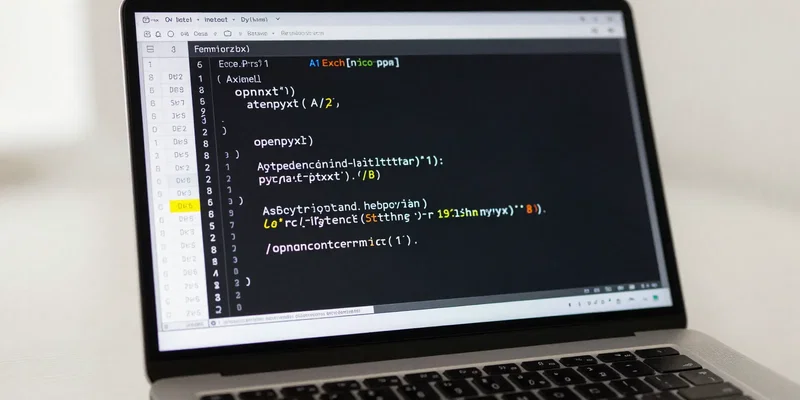
For a beginner Python Excel workflow, the fastest win is reading a few cells and proving the file loaded correctly. Once you have
ws
, you can pull values directly:
ws["A1"].value
reads cell A1, and
ws["B2"].value
reads B2. That’s the easiest way to inspect a sheet without overthinking it. If you know exactly where the data lives, this is enough for a lot of small scripts.
But most real sheets aren’t one-cell affairs. You’ll usually want to loop through rows.
openpyxl
gives you a clean way to do that with
iter_rows()
. For example,
for row in ws.iter_rows(min_row=2, values_only=True):
lets you skip a header row and read plain values instead of full cell objects. That
values_only=True
part is especially useful because it keeps the output simple: tuples of data, not a pile of cell metadata you didn’t ask for. If your sheet has columns like Name, Region, and Total, each loop gives you one row’s values in order. It’s the difference between “I can read excel python style” and “I’m manually poking at random cells and hoping for the best.” One practical tip: print a few rows first before building logic on top of them. Spreadsheets are often messier than they look, with blank rows, weird headers, or values sitting in the wrong column because someone dragged something in Excel three months ago.
Use Row and Column Access That Matches How Real Spreadsheets Are Built
Once you move past reading a couple of cells, you need patterns that scale. That usually means reading by row, checking headers, and using column numbers or names consistently.
openpyxl
uses one-based indexing for rows and columns, which trips up Python beginners because Python lists are zero-based. So
ws.cell(row=1, column=1).value
is A1, not row 0, column 0. Easy to forget. Very annoying when you do.
A solid habit is to inspect the header row first and map it to positions. Say row 1 contains
["Name", "Department", "Salary"]
. You can read that row, figure out which column contains the field you care about, and then loop through the rest of the sheet using that position. That’s much safer than hardcoding “column C is always Salary,” because spreadsheets drift over time. People insert columns. They rename tabs. They make “small changes” that are never small. You can also access whole columns or row ranges, but for a beginner,
iter_rows()
is usually the sweet spot: readable, flexible, and not overly clever. If you need formulas, note that
openpyxl
reads the formula itself unless you load the workbook with
data_only=True
, which returns the last calculated value saved by Excel. That distinction matters. If a workbook hasn’t been recalculated recently, the value you read may be stale. Not a bug. Just one of those spreadsheet realities nobody mentions until it bites you.
Update Workbook Data Safely Instead of Clobbering the Sheet
Updating cells is where this starts to feel useful. To change a value, assign to the cell directly:
ws["C2"] = 1250
or
ws.cell(row=2, column=3, value=1250)
. That’s it. If your goal is to update workbook python style for repetitive tasks, this is the core move. Loop through rows, find the ones that match your condition, then write the new value into the target cell.
Here’s a common beginner example: you have a status column and want to mark overdue items. Read each row, check the due date or current status, and write something like
"Overdue"
into another column. Or maybe you want to apply a percentage increase to prices. In that case, read the existing numeric value, do the math in Python, and assign the result back into the cell. Just be careful with types. Excel cells might contain numbers, strings, blanks, or values that only look numeric because someone formatted the column nicely. If you try to multiply
None
or a text string by a float, your script will let you know immediately and not gently. One more thing: changing a workbook in memory does nothing until you save it. Use
wb.save("sales_updated.xlsx")
if you want a safer output file, especially while testing. Overwriting the original with
wb.save("sales.xlsx")
is fine once you trust your script, but not on day one. Save to a new filename, open it in Excel, and check the exact cells you expected to change. Boring step. Worth it every time.
Handle Multiple Sheets, Missing Data, and Other Stuff That Breaks Beginner Scripts
Real workbooks are rarely tidy. They have multiple tabs, merged cells, empty rows in the middle, headers with trailing spaces, and the occasional mystery value nobody can explain. If you want your beginner python excel script to survive outside a toy example, you need a few defensive habits. First, check what sheets exist with
wb.sheetnames
. Don’t assume the tab is called exactly what you think. Then grab the right one deliberately:
ws = wb["Invoices"]
is better than blindly using the active sheet if the workbook structure matters.
Next, expect blanks. A missing cell often returns
None
, and that can break comparisons or calculations if you don’t account for it. Use simple guards like
if value is not None
before doing math or string cleanup. If you’re comparing text, normalize it first with something like
str(value).strip()
, but only after checking it isn’t
None
. Also, merged cells can be confusing because only the top-left cell actually stores the value. The rest may look filled in visually in Excel but come through as empty in Python. That’s not
openpyxl
being weird; that’s how merged cells work under the hood. And if your sheet is large, avoid looping over massive empty ranges just because Excel thinks the sheet used to have data there. Use
ws.max_row
and
ws.max_column
as a starting point, but stay aware they can reflect leftover formatting too. Spreadsheets have memory. Not always the useful kind.
A Small Working Pattern You Can Reuse for Everyday Excel Automation
If you want a reliable pattern to copy into your own projects, keep it simple: load the workbook, choose the sheet, inspect headers, loop through rows, update matching cells, save to a new file. That workflow covers a surprising amount of day-to-day automation. You don’t need a giant framework to rename statuses, fill missing values, adjust totals, or extract data from one tab into something cleaner.
A compact example looks like this in spirit: load
report.xlsx
, get
Sheet1
, loop from row 2 onward, read a value from column B, and if it equals
"Pending"
, write
"Processed"
into column C. Then save as
report_updated.xlsx
. That’s enough to automate the kind of spreadsheet chores people waste half a morning doing by hand. Once you’re comfortable with that, you can branch out into formatting cells, creating sheets, or combining
openpyxl
with
pandas
when the data gets more analysis-heavy. But for straightforward tasks where you need to read excel python scripts can understand and then write changes back cleanly,
openpyxl
is a good tool to have in reach. It’s direct, dependable, and doesn’t make simple jobs feel bigger than they are.